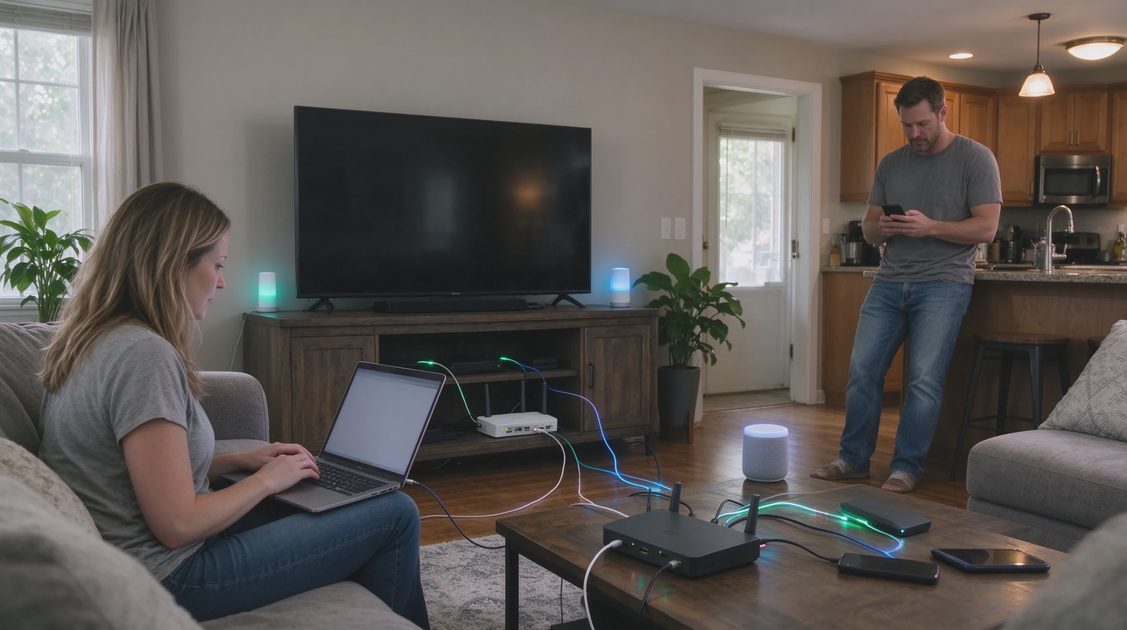
When video calls drop at dinner time, school devices struggle in the bedroom, or the smart speaker keeps losing connection, the first impulse is often to buy a new router. Sometimes that is the right move. More often the existing equipment can perform better once a few common problems are addressed.
I have helped families work through slow or unreliable Wi-Fi in homes of different ages and layouts. The pattern is consistent: placement, interference, outdated settings, and basic maintenance cause more frustration than the router’s age or brand. Fixing those issues first saves money and frequently delivers the improvement people were hoping a new box would provide.
Buy for the life you have, not the brochure you were shown. That includes the network already running in your house.

Why Wi-Fi Feels Worse Than It Should
Wi-Fi signals are radio waves. They weaken with distance, struggle through certain materials, and compete with other devices that use similar frequencies. A router placed in a corner cabinet, buried behind a television, or sitting next to a cordless-phone base will underperform even if the hardware itself is capable. Add a busy household with multiple streaming devices, video calls, and smart-home gadgets, and the network can feel saturated even when the internet connection from the provider is fine.
Understanding that the problem is often environmental or configurational—not purely hardware—changes the order of troubleshooting.
What “Good Enough” Wi-Fi Looks Like for Most Families
Reliable coverage in the rooms where people actually use devices. Consistent speeds for video calls and streaming without constant buffering. The ability for several devices to stay connected during evening peak use. Simple management so you are not constantly restarting equipment. Perfection in every corner of a large or multi-story house is harder and sometimes unnecessary. Focus on the spaces that matter daily.
Step One: Confirm the Problem Is Actually Wi-Fi
Before changing anything, separate internet-service issues from wireless ones.
Test Wired Performance When Possible
If you can connect a laptop directly to the router or modem with an Ethernet cable, run a simple speed test. If the wired connection is stable and meets the speed you pay for, the internet service is likely fine and the issue is wireless. If the wired connection is also slow or drops, contact your internet provider before spending time on Wi-Fi fixes.
Note When and Where Problems Occur
Do drops happen at certain times of day? Only in specific rooms? Only on certain devices? Patterns point toward congestion, distance, interference, or a device-specific problem rather than a blanket failure of the router.
Restart the Modem and Router Properly
Unplug both, wait a full minute, plug the modem back in first and let it fully stabilize, then power the router. This simple sequence clears temporary glitches more often than people expect. Do it before deeper troubleshooting.
Step Two: Fix Placement and Basic Physical Issues
Location is the highest-leverage change for most homes.
Move the Router to a Central, Elevated Spot
Place the router in a central location on the main floor when possible, elevated off the floor, and away from thick walls, metal objects, and large appliances. Avoid cabinets, closets, and spots directly behind televisions or fish tanks. Even a move of a few feet can improve coverage in key rooms.
Keep Antennas and Vents Clear
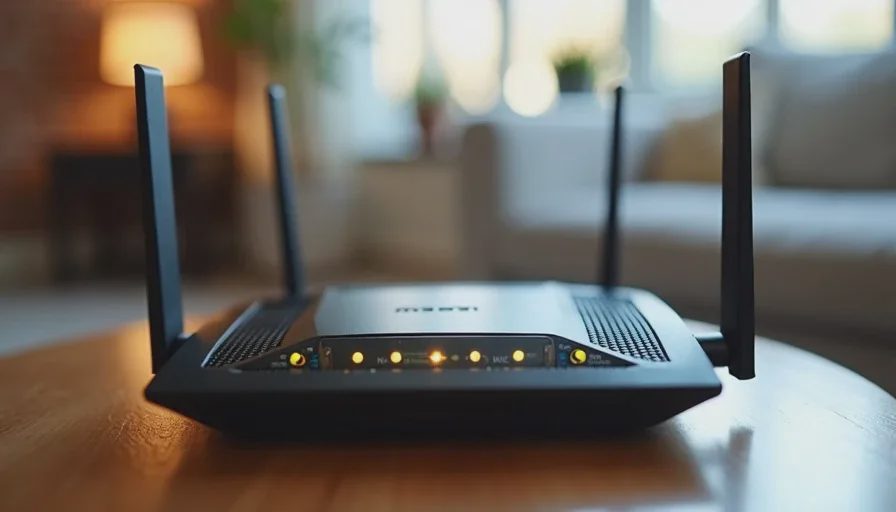
If the router has adjustable antennas, orient them according to the manufacturer’s basic guidance—often one vertical and others adjusted for multi-floor coverage. Ensure ventilation openings are not blocked so the unit does not overheat and throttle performance.
Reduce Immediate Interference Sources
Cordless phones, microwave ovens, baby monitors, and some Bluetooth devices can compete with Wi-Fi. Keep the router away from these when practical. During troubleshooting, temporarily turn off or move suspect devices to see whether stability improves.
Step Three: Address Congestion and Channel Settings
Modern routers usually select channels automatically, but manual checks still help in crowded neighborhoods.
Log In to the Router’s Admin Page
Use the address and credentials printed on the router or in its original paperwork. If you have never changed them, update the admin password once you are in. Familiarize yourself with the basic wireless settings page.
Try a Less Crowded Channel
For the 2.4 GHz band, channels 1, 6, and 11 are the primary non-overlapping options in most regions. If your router allows, observe which channels neighboring networks use and pick a quieter one. For the 5 GHz band, automatic selection is often adequate, but ensuring the band is enabled and not restricted can help devices that support it.
Separate or Prioritize Bands When Useful
Many routers broadcast both 2.4 GHz (better range, more interference-prone) and 5 GHz (faster, shorter range). Giving the bands different network names temporarily lets you connect devices deliberately and test which performs better in each room. Some households keep them separate; others prefer a single name and let the router steer devices.
Step Four: Update Firmware and Review Basic Security
Outdated firmware can cause instability and leave known problems unaddressed.
Check for Firmware Updates
Inside the router admin interface, look for a firmware or system-update section. Apply available updates and allow the router to restart fully. Updated firmware often improves stability and security without any hardware change.
Confirm Network Security Settings
Use WPA2 or WPA3 encryption with a strong, unique Wi-Fi password. Avoid older, open, or WEP settings. A compromised or overloaded network from unauthorized users can look like a performance problem.
Review Connected Devices
Most routers show a list of currently connected devices. Remove or block any you do not recognize. Guest networks are useful for visitors and for isolating smart-home devices that do not need access to your main file or printer resources.
Step Five: Simple Additions Before a Full Router Replacement
If placement and settings help but coverage still falls short in important rooms, modest additions often solve the gap.
Ethernet Backhaul for Key Locations
Where practical, run a wired connection to a room that needs reliable service and add a simple access point or use a router in access-point mode. Wired backhaul is more stable than pure wireless repeating.
Quality Powerline or MoCA Adapters When Wiring Is Difficult
In some homes, existing electrical wiring or coaxial cable can carry network signals between floors or distant rooms. Results vary with the age and quality of the wiring, but these adapters can be worth testing before investing in a full mesh system.
A Single Access Point or Range Extender Used Carefully
A well-placed access point connected by Ethernet is preferable to a wireless extender. If you must use an extender, place it where it still receives a strong signal from the main router; putting it in the dead zone usually produces disappointing results. Match the extender to your router’s capabilities when possible.
When a New Router or Mesh System Becomes Reasonable
After the steps above, some situations still call for new equipment.
Clear Hardware Limitations
The current router is many years old, lacks modern security standards, cannot handle the number of devices in the home, or has known failing components such as overheating or intermittent radios.
House Layout That Exceeds Single-Router Reach
Large footprints, multiple stories, dense construction materials, or detached spaces that need coverage often benefit from a mesh system designed for seamless roaming. Even then, proper placement of the nodes remains essential.
Persistent Congestion Despite Optimization
If evening use regularly saturates the network after channels, firmware, and device management have been addressed, a router with stronger processing and better multi-device handling can help.
In these cases, choose equipment that matches the size of the home and the number of simultaneous devices rather than the highest marketing claims. Keep the same placement and configuration principles; new hardware does not overcome a router left in a cabinet.
Everyday Habits That Keep Wi-Fi Stable
Restart the modem and router every few months or after power outages. Keep firmware current. Periodically review the list of connected devices. Place high-bandwidth activities (large downloads, 4K streaming) on 5 GHz or wired connections when possible. Avoid running bandwidth-heavy tasks on every device at the exact same moment if the network is already near its limit.

Letters
No letters yet — be the first to write.